
Reading Time: 12 minutes
Difficulty: Intermediate
Module 1.1: The Evil Twin Attack Explained
Introduction: The Map of the Battlefield
When you connect your phone to Wi-Fi, the router assigns you a digital passport—a configuration consisting of an IP address and subnet mask. Most people think these numbers just identify them on the internet.
But to a hacker, an IP address and subnet represent coordinates on a map.
Before an attacker launches an exploit, they need to understand the terrain. They need to know: How big is this network? Who are the neighbors? Where are the servers? To figure this out, they analyze the relationship between your IP and the subnet mask.
In this module, we will deconstruct how computers divide digital territory into “Us” (Local Network) and “Them” (The Internet), and how hackers use this to find you.
1. Understanding IP Address and Subnet Basics
Let’s start with the anatomy. An IP address (specifically IPv4) usually looks like this: 192.168.1.15.
To a human, it’s just four numbers separated by dots. To a computer, it is a 32-bit binary number. Each number (octet) can range from 0 to 255.
But here is the catch: An IP address alone doesn’t tell you the size of the network. Is this a small apartment with 3 devices? Or a massive corporate headquarters with 5,000 laptops?
To understand the scale, we need to look at the IP address and subnet mask together.
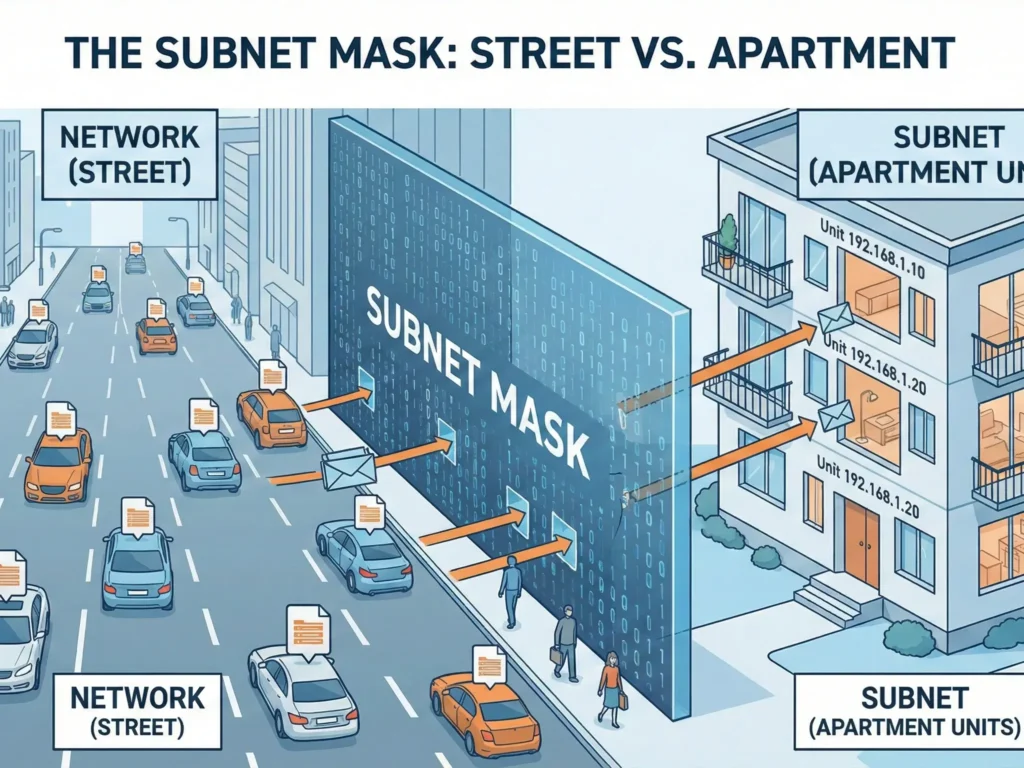
2. The Subnet Mask: Street vs. Apartment
An IP address always consists of two distinct parts:
- The Network ID (The Street): This part identifies the specific network. It is shared by every device in that location.
- The Host ID (The Apartment): This part identifies the specific machine (your phone, your laptop). It must be unique.
The Subnet Mask is the ruler that draws the line between the “Street” and the “Apartment.”
The Classic Example (Home Wi-Fi)
- Your IP:
192.168.1.55 - Subnet Mask:
255.255.255.0
The number 255 tells the computer: “This part of the address is the Street (Network).”
The number 0 tells the computer: “This part is the Apartment (Host).”
In this specific case:
- The Street (Network ID):
192.168.1(These numbers cannot change for anyone in your house). - The Apartment (Host ID):
.55(This is you. Your laptop might be.56, your smart TV.57).
The Hacker’s Conclusion: If I hack into a network and see the mask 255.255.255.0, I immediately know that I only need to scan the last number (from 1 to 254) to find every other victim in the building.
3. Hacker Slang: CIDR Notation
System administrators and hackers are lazy. They hate typing 255.255.255.0. Instead, they use a shorthand called CIDR (Classless Inter-Domain Routing) or “Slash Notation.”
You will often see an IP address and subnet written like this: 192.168.1.55/24.
Why /24?
Computers see numbers in binary (zeros and ones).
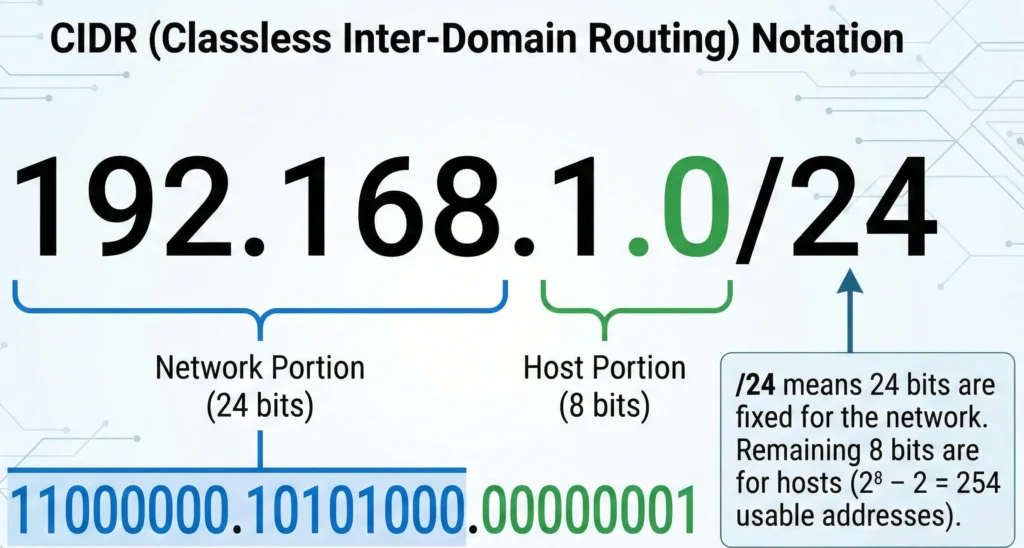
The number 255 in binary is 11111111. That is exactly 8 bits.
If we have three blocks of 255 (255.255.255.0), that is $8 + 8 + 8 = 24$.
So, /24 simply means: “The first 24 bits of this address are locked to the network.”
The “Cheat Sheet” for Beginners
| Subnet Mask | CIDR | Number of Devices (Hosts) | Typical Environment |
255.255.255.0 | /24 | 254 | Home Wi-Fi, Coffee Shops (Standard). |
255.255.0.0 | /16 | 65,534 | Large Offices, Campuses. |
255.0.0.0 | /8 | 16 Million | ISPs, Huge Corporate Intranets. |
255.255.255.252 | /30 | 2 | Direct link between two routers. |
(Alt Text: Chart showing CIDR notation for IP address and subnet mask calculation)
4. How Hackers Use This to Attack
Imagine a hacker walks into a hotel lobby and connects to the Wi-Fi. Their first move is not to launch a virus. Their first move is to check their own IP address and subnet configuration.
Let’s say they get assigned: 10.0.0.5 with a mask of /8 (255.0.0.0).
This is a Jackpot for an attacker. Why?
- A
/24mask would limit them to scanning ~250 “neighbors.” - A
/8mask means they are sitting inside a gigantic corporate network where they can scan and attack millions of potential IP addresses (10.x.x.x). The attack surface is massive.
The Tools:
The hacker opens a terminal and uses a tool like Nmap (you can read more about Nmap on Wikipedia):
nmap -sn 192.168.1.0/24
This command translates to: “Hey computer, scan the entire street from house #1 to house #254 and tell me who is home.”
Within seconds, they have a list of every iPhone, Android, and laptop connected to that Wi-Fi.
5. Special Addresses (Don’t Embarrass Yourself)
In every subnet, there are two VIP addresses that cannot be assigned to devices. Knowing these is crucial for understanding how networks “talk.”
- The Network Address (The First One): Usually
.0(e.g.,192.168.1.0).- This is the name of the street itself. You cannot live at “Main Street”; you live at “10 Main Street.” Similarly, no device can have the
.0IP.
- This is the name of the street itself. You cannot live at “Main Street”; you live at “10 Main Street.” Similarly, no device can have the
- The Broadcast Address (The Last One): Usually
.255(e.g.,192.168.1.255).- Function: If you send a data packet to this address, EVERY device in the subnet receives it.
- The Danger: Hackers love this. They send a “Hello?” packet to the broadcast address, and every insecure device on the network replies “I’m here!”, revealing its location.
6. How VPN Changes Your “Address”
When you enable a VPN, you fundamentally change your IP address and subnet exposure.
- You effectively disappear from the coffee shop’s local network (
192.168.1.x). - Your device creates a virtual network adapter.
- You receive a new IP address inside the virtual VPN network (e.g.,
10.8.0.5).
Now, if a hacker in the coffee shop runs a scan on 192.168.1.0/24, they might see your device exists, but they cannot interact with it. All “doors” (ports) on your computer are closed to the local network and open only to the secure VPN tunnel.
You become an invisible man sitting in the room but existing in a different dimension.
🎓 Practical Assignment (Safe)
Want to see your current IP address and subnet right now?
Windows:
- Press
Win + R, typecmd. - Type
ipconfig. - Look for the lines
IPv4 AddressandSubnet Mask.
macOS / Linux:
- Open Terminal.
- Type
ifconfig.
If you see a mask of 255.255.255.0 (or 0xffffff00), congratulations—you are in a standard Class C network. You have up to 253 “neighbors” who could potentially see you.