It’s one of the most common questions in design: “Is CorelDRAW Standard better than Photoshop?” This is an excellent question, but it’s like asking if a hammer is better than a screwdriver. Both are essential tools, but they are built for fundamentally different jobs.
The short answer: No, CorelDRAW Standard isn’t “better” than Photoshop. And Photoshop isn’t “better” than CorelDRAW. They are simply different.
But the question hides a crucial misunderstanding. Many users are comparing the wrong things. Let’s dig deeper.
Part 1: The Core Difference: Vector (Corel) vs. Raster (Photoshop)
This is the most important distinction you must understand.
Adobe Photoshop: The King of Raster (Pixels)
Photoshop is a raster editor. It works by manipulating pixels—tiny squares of color that make up a digital image.
- Best for: Editing photographs, digital painting, creating complex collages, and designing web banners that feature photorealistic elements.
- The Weakness: Raster images are resolution-dependent. If you create a logo at 100×100 pixels and try to stretch it to 1000×1000, your computer has to “guess” what to fill in the new space. The result is a blurry, pixelated mess.
CorelDRAW: The Master of Vector (Math)
CorelDRAW is a vector editor. It works with mathematical formulas that define points, lines, and curves.
- Best for: Designing logos, icons, illustrations, and print layouts (like business cards and flyers).
- The Advantage: A vector design is infinitely scalable. You can design a logo and stretch it to the size of a billboard or shrink it to fit on a pen with zero loss of quality. It will always be perfectly crisp.
Part 2: The Big Twist: What CorelDRAW Standard Actually Is
Here is where the comparison gets interesting. When you buy CorelDRAW Standard 2024, you are not just getting one program. You are getting a “2-in-1” package.
This package includes:
- CorelDRAW® Standard: The powerful vector illustration and page layout tool.
- Corel PHOTO-PAINT™ Standard: A capable raster (pixel) editor for editing photos.
Therefore, the original “Corel vs. Photoshop” question is flawed. The real comparison is:
CorelDRAW(vector) vs.Adobe IllustratorCorel PHOTO-PAINT(raster) vs.Adobe Photoshop(or GIMP)
This 2-in-1 suite is aimed at “graphics enthusiasts and home businesses.” It’s not the full-featured “Graphics Suite” pros use, but it’s a complete package for a one-time price, designed specifically for Windows users.
Part 3: Is the CorelDRAW Standard 2024 Suite Effective for the Web?
Yes, and its 2-in-1 nature makes it a surprisingly strong contender for web and marketing tasks.
🟢 Where the Suite Shines for Web:
- Logos and Icons (Using CorelDRAW): This is its biggest strength. You can design your logo once and export it in any size.
- SVG (Scalable Vector Graphics): CorelDRAW is fantastic for exporting to SVG. This is the ideal format for web logos and icons—they load instantly, have tiny file sizes, and look perfect on every screen (including Retina).
- NEW! WebP File Support: The 2024 version adds support for the modern WebP format. This is a huge advantage for marketers, as WebP images are much smaller than JPGs and PNGs, making your landing pages load faster.
- Basic Photo Editing (Using PHOTO-PAINT): You don’t need another program for simple tasks. PHOTO-PAINT Standard handles cropping, straightening, color adjustments (vibrance, grayscale), and simple effects (sepia, sharpen) with ease.
- Included Assets: The package comes with thousands of assets to get you started, including templates, 1000+ clipart images, 100 royalty-free photos, and 175 fonts.
🔴 Where the Suite Has Limits:
- Advanced Photo Manipulation: Corel PHOTO-PAINT Standard is not Photoshop. For heavy-duty, complex tasks like precisely cutting an object out of a messy background (which requires advanced tools like paths, channel masks, or AI selection), a dedicated tool like the full Photoshop or GIMP is still superior.
- Pro Print (CMYK): The “Standard” version is heavily focused on RGB (for web). While it can handle print, it lacks the advanced CMYK and pre-press tools of the full “Graphics Suite.”
- Windows-Only: This is a deal-breaker if you use a Mac.
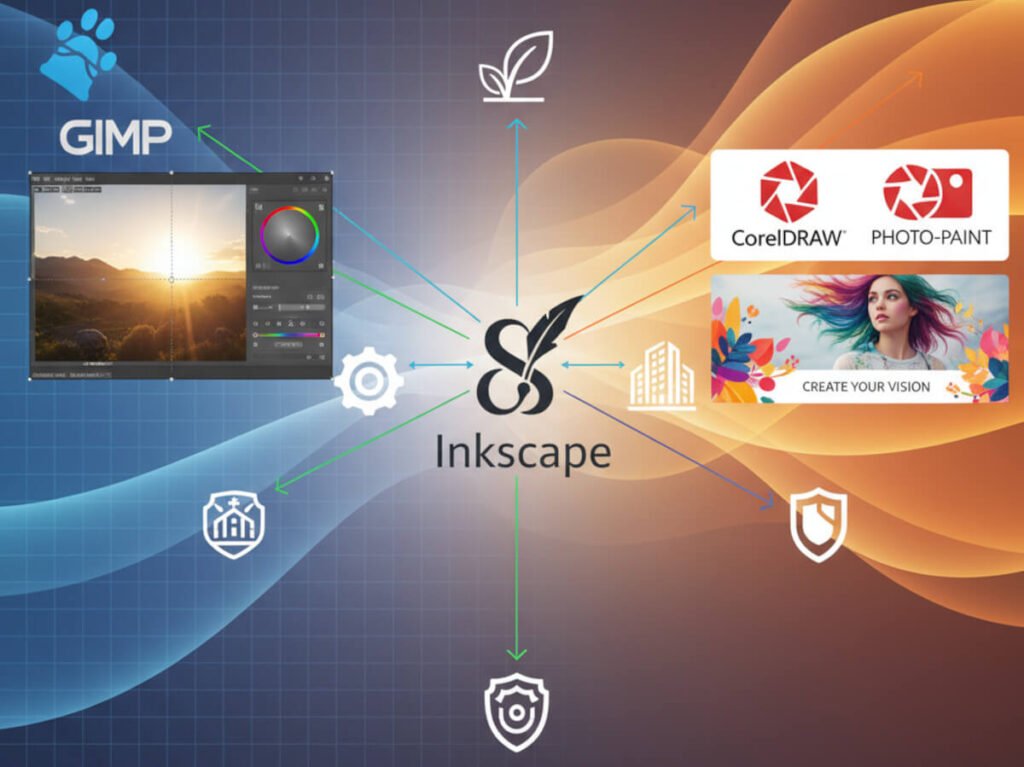
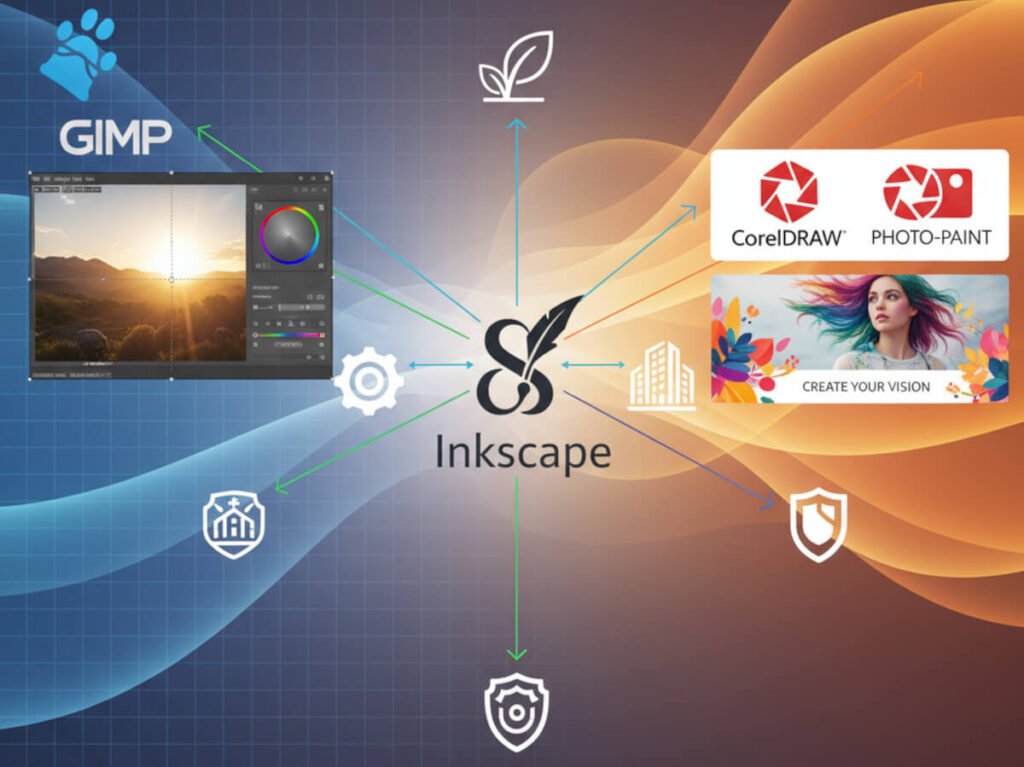
Part 4: The Best Alternative: The Free (Inkscape + GIMP) Route
Before you buy, you must consider the powerful free alternative.
| Criterion | Inkscape | CorelDRAW Standard 2024 |
| Cost | 100% Free (Open Source) | Paid (One-time purchase) |
| Operating System | Windows, macOS, and Linux | Windows Only |
| What’s Included | Vector Only. You must pair it with GIMP for photo editing. | All-in-One. Includes both vector (CorelDRAW) and raster (PHOTO-PAINT). |
| User Experience | Extremely powerful, but the interface can be less intuitive for beginners. | Generally considered more user-friendly and easier to learn. |
| Assets | None included. You find your own fonts, templates, and clipart. | Comes with 1000s of clipart images, photos, fonts, and templates. |
The choice is clear:
- Inkscape is for users who are on a budget (or on a Mac), are willing to learn a more complex tool, and don’t mind using two separate programs (Inkscape + GIMP) for their workflow.
- CorelDRAW Standard is for Windows users who want a simpler, all-in-one package with a lower learning curve and a library of assets included right out of the box.

Final Verdict: The Best Workflow for Your Marketing
You don’t need to choose “one” tool. You need the right workflow.
Based on an interest in web development, WordPress, and affiliate marketing, here are your best options:
- The Free Workflow:
- Use
Inkscapefor all vector work: logos, favicons, and SVG icons for your site. - Use
GIMPfor all raster work: editing photos for reviews, creating ad banners, and optimizing JPG/PNG/WebP files to be as small as possible.
- Use
- The Paid “Standard” Workflow (Windows-Only):
- Use
CorelDRAW Standardfor logos, icons, SVGs, and even simple page layouts for ad banners. - Use
Corel PHOTO-PAINT Standardto edit the photos you place into those banners and to prep images for your blog.
- Use
Both workflows are valid. The “Standard” route is more integrated and user-friendly, while the “Free” route is more flexible, cross-platform, and costs nothing but your time to learn.
Corel DRAW Graphics SuiteBądź na bieżąco!
Zapisz się, aby nie przegapić nowości na Review Space.
Join Our Newsletter
No spam. Unsubscribe anytime.